Home of Inspirational Talks, Codding, Downloads, Write Ups and How Tos

Blogging Tips for Newbies and Veterans

We’ve all seen them. The same old, tired lists of regurgitated tips on how to blog better. They’re so common, you could probably name most of them in your sleep. I don’t know about you, but I’m tired of them. I want to know what really works.
Blogging
So whether you’re just getting started or have been blogging for awhile, here are 25 tips to help guide and direct you:

General

  • No copy-catting. Stop trying to be like someone you admire and instead find out what unique offering you have.
  • Tell the truth. Never lie, mislead, or cajole. Trust is slowly earned and easily lost.
  • Be awesome. There’s enough mediocrity out there. Stop adding to the noise, and do something outstanding.
  • Give yourself grace. Be patient; it takes time to find your voice.
  • Pick a theme. But realize readers will stick around for your voice, not your subject.

Growth and community

  • Don’t measure stats too early. If you’re obsessing over daily numbers and you’re only a few months into your blogging journey, you’re wasting your time. It’s still too early to pay close attention to trends. After that, make sure you have Google Analytics installed.
  • Make your content easy to share. The majority of content that’s shared online is done through social networks like Facebook, Twitter, Reddit, LinkedIn, and others. You should make this easy for your readers to tell their friends about you. (A WordPress plugin I recommend is DIGG DIGG.)
  • Encourage community. Write unfinished posts, and ask your community to complete the conversation.
  • Never underestimate the importance of networking. If you’re not connecting regularly with readers and other bloggers, you’re missing out.
  • Guest post, guest post, guest post. (Enough said.)

Writing

  • Write timeless content. On the web, old content is perceived as irrelevant. Don’t write a newspaper; create a resource. (This is, incidentally, why I intentionally don’t put dates on my posts.)
  • Don’t write too little or too much. Generally, I try to write at least 300 words and no more than 1000 words. More than that, though, only write as many words as it takes and cut the rest.
  • Have a point. Don’t just word-vomit on your audience.
  • Write with conviction. Pick a side and be bold. And if you’re wrong, admit it.
  • Short sentences win.

Motivation and inspiration

  • Don’t give up. Bloggers who stick with it ultimately win.
  • Write as often as possible. Constantly capture ideas and turn them into posts. A tool that may help is Evernote.
  • Expect critics. A few people hating you is a sign you’re doing something right. Be prepared.
  • Find ways to regularly get inspired. This is the only way you can inspire others. When you’re empty, fill yourself up. Don’t neglect this.
  • Realize you can only create or react. At any give time, make sure you know which one you’re doing.

Miscellaneous

  • Write for scanners. We live in a busy, distracted world. Don’t demand attention; earn it.
  • Build an email list. If you ever want to sell or promote something, having people’s email addresses (and their permission to use them) is essential.
  • Invest in a good web design. Bad design can get in the way of good content.
  • Be generous. Give away more information, content, and ideas than you’re comfortable with. People will reward you. Link to others, but never let someone pay you to do so.
  • Watch what experts do. Not just what they say.
These are my 25 tips. You probably have 25 of your own. And that’s okay, because I’ve realized that everyone needs to approach blogging in their own way. That’s part of the fun. Feel free to add to this list in the comments.
Share:

How to Include an RSS Feed in Blogs at Blogger.com / Blogspot.com


 How to Include an RSS Feed in Blogs at Blogger.com / Blogspot.com

RSSinclude.com makes it very easy to include RSS feeds in your blog. Basically there are two areas on blogs where you can add an RSS box:

1) in the sidebar on the right side (containing the Blog Archive, About me and Followers...)
or
2) in blog posts.

We would like to explain both in the following sections.

1) RSSbox in the Sidebar of the Blog

This area of your blog is visible permanently. You can add a blog archive, your personal bio and much more to this area. Of course you can put an RSSbox from RSSinclude.com here. This is how:
a) Log in to your account at blogger.com. On top of the page there is a main menu. Click the "Layout" link, this will lead you to a graphical overview of your blog.
b) Click the "Add a Gadget" link. A new window will be opened displaying different gadgets from which you can choose. Select "HTML/JavaScript" to add third-party code like ours.
c) A form will appear which contains two form fields: title and content. You can type in a title for the gadget, e.g. "Latest RSS News".
d) The content of the gadget comes from RSSinclude.com. You should keep rssinclude.com opened in a new window simultaneously. In order to get your IncludeCode you have to create a new RSSbox first. As soon as you are done you will get an IncludeCode by clicking on "Include!".
e) Copy the IncludeCode of your RSSbox and paste it into the form at blogger.com (see screenshot).
f) Click the "Save" button to return to your blog administration.
g) You can click the "Preview" button to preview your changes or save the change layout by clicking the "Save" button.
h) Click the "View Blog" link (next to the "Monetize" tab) in the blogger administration. Subsequently your blog will be displayed containing a brand new RSSbox. You can still change the styling of the RSSbox at My RSSboxes. If you play around a bit you will be able to embed it very nicely.

2) RSSbox in a Blog Post

The second way of including an RSS feed in your blog is to embed it into a blog post. The following steps and screenshots show you how to do that:


a) Go to your blog administration at blogger.com. Click the "Posting" tab on top of the page. Edit the post in which you want the RSS feed to be displayed - or simply create a new post.
b) Click the "Edit Html" link on top of the rich-text editor. Subsequently the html code of you post will be displayed.
c) Open rssinclude.com simultaneously in a new window. Click the "Create a Box" link. Create and style your RSSbox as you wish. Keep in mind that its dimensions should fit into your blog post. As soon as you are done go to the "Include!" tab (see screenshot).
d) Copy and paste the JavaScript-code from rssinclude.com into the html of your blog post. Ensure that you paste the code in a spare line of the editor (see screenshot).

e) Click the "Publish Post" link. Blogger.com should now say "Your  blog post published successfully!". Click the "View Blog" link to display your changes.

f) This is how your blog post could look like. You can still change the styling of the RSSbox by surfing to My RSSboxes at rssinclude.com.
Share:

PHP 5 Introduction

PHP 5 Introduction


PHP scripts are executed on the server.

What You Should Already Know

Before you continue you should have a basic understanding of the following:
  • HTML
  • CSS
  • JavaScript.

What is PHP?

  • PHP is an acronym for "PHP: Hypertext Preprocessor"
  • PHP is a widely-used, open source scripting language
  • PHP scripts are executed on the server
  • PHP is free to download and use
PHP is an amazing and popular language!
It is powerful enough to be at the core of the biggest blogging system on the web (WordPress)!
It is deep enough to run the largest social network (Facebook)!
It is also easy enough to be a beginner's first server side language!

What is a PHP File?

  • PHP files can contain text, HTML, CSS, JavaScript, and PHP code
  • PHP code are executed on the server, and the result is returned to the browser as plain HTML
  • PHP files have extension ".php"

What Can PHP Do?

  • PHP can generate dynamic page content
  • PHP can create, open, read, write, delete, and close files on the server
  • PHP can collect form data
  • PHP can send and receive cookies
  • PHP can add, delete, modify data in your database
  • PHP can be used to control user-access
  • PHP can encrypt data
With PHP you are not limited to output HTML. You can output images, PDF files, and even Flash movies. You can also output any text, such as XHTML and XML.

Why PHP?

  • PHP runs on various platforms (Windows, Linux, Unix, Mac OS X, etc.)
  • PHP is compatible with almost all servers used today (Apache, IIS, etc.)
  • PHP supports a wide range of databases
  • PHP is free. Download it from the official PHP resource: www.php.net
  • PHP is easy to learn and runs efficiently on the server side
SOURCE: W3School.com
Share:

HTML Editors


 HTML Editors


Write HTML Using Notepad or TextEdit

Web pages can be created and modified by using professional HTML editors.
However, for learning HTML we recommend a simple text editor like Notepad (PC) or TextEdit (Mac).
We believe using a simple text editor is a good way to learn HTML.
Follow the four steps below to create your first web page with Notepad or TextEdit.

Step 1: Open Notepad (PC)

Windows 8 or later:
Open the Start Screen (the window symbol at the bottom left on your screen). Type Notepad.
Windows 7 or earlier:
Open Start > Programs > Accessories > Notepad

Step 1: Open TextEdit (Mac)

Open Finder > Applications > TextEdit
Also change some preferences to get the application to save files correctly. In Preferences > Format > choose "Plain Text"
Then under "Open and Save", check the box that says "Ignore rich text commands in HTML files".
Then open a new document to place the code.

Step 2: Write Some HTML

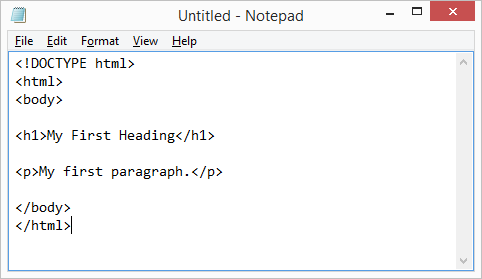
Write or copy some HTML into Notepad.
<!DOCTYPE html>
<html>
<body>

<h1>My First Heading</h1>

<p>My first paragraph.</p>

</body>
</html>
Notepad


Step 3: Save the HTML Page

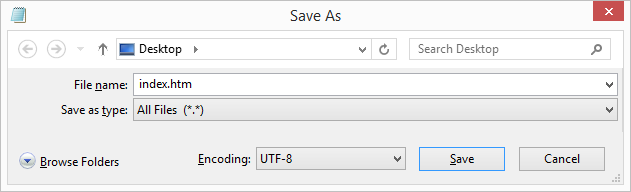
Save the file on your computer. Select File > Save as in the Notepad menu.
Name the file "index.htm" and set the encoding to UTF-8 (which is the preferred encoding for HTML files).
View in Browser
You can use either .htm or .html as file extension. There is no difference, it is up to you.

Step 4: View the HTML Page in Your Browser

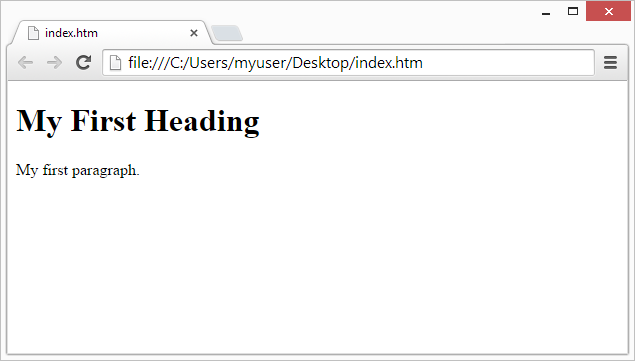
Open the saved HTML file in your favorite browser (double click on the file, or right-click - and choose "Open with").
The result will look much like this:


View in Browser


SOURCE: W3School.com

Share:

HTML Introduction


What is HTML?

HTML is the standard markup language for creating Web pages.
  • HTML stands for Hyper Text Markup Language
  • HTML describes the structure of Web pages using markup
  • HTML elements are the building blocks of HTML pages
  • HTML elements are represented by tags
  • HTML tags label pieces of content such as "heading", "paragraph", "table", and so on
  • Browsers do not display the HTML tags, but use them to render the content of the page

A Simple HTML Document

Example

<!DOCTYPE html>
<html>
<head>
<title>Page Title</title>
</head>
<body>

<h1>My First Heading</h1>
<p>My first paragraph.</p>

</body>
</html>

Example Explained

  • The <!DOCTYPE html> declaration defines this document to be HTML5
  • The <html> element is the root element of an HTML page
  • The <head> element contains meta information about the document
  • The <title> element specifies a title for the document
  • The <body> element contains the visible page content
  • The <h1> element defines a large heading
  • The <p> element defines a paragraph

HTML Tags

HTML tags are element names surrounded by angle brackets:
<tagname>content goes here...</tagname>
  • HTML tags normally come in pairs like <p> and </p>
  • The first tag in a pair is the start tag, the second tag is the end tag
  • The end tag is written like the start tag, but with a forward slash inserted before the tag name
Tip: The start tag is also called the opening tag, and the end tag the closing tag.


Web Browsers

The purpose of a web browser (Chrome, IE, Firefox, Safari) is to read HTML documents and display them.
The browser does not display the HTML tags, but uses them to determine how to display the document:
View in Browser

HTML Page Structure

Below is a visualization of an HTML page structure:
<html>
<head>
<title>Page title</title>
</head>
<body>
<h1>This is a heading</h1>
<p>This is a paragraph.</p>
<p>This is another paragraph.</p>
</body>
</html>
Note: Only the content inside the <body> section (the white area above) is displayed in a browser.

The <!DOCTYPE> Declaration

The <!DOCTYPE> declaration represents the document type, and helps browsers to display web pages correctly.
It must only appear once, at the top of the page (before any HTML tags).
The <!DOCTYPE> declaration is not case sensitive.
The <!DOCTYPE> declaration for HTML5 is:
<!DOCTYPE html>

HTML Versions

Since the early days of the web, there have been many versions of HTML:
Version Year
HTML 1991
HTML 2.0 1995
HTML 3.2 1997
HTML 4.01 1999
XHTML 2000
HTML5 2014
Share:

Wapego -wap/mobile site builder/wap creator


Wapego - mobile site builder
build your own mobile site


Create your site fast and easy. No programming knowledge or special software is required ! We will give your free subdomain and hosting in powerfull server. And yes it`s absolutelly free!

You can earn money from your site with zero investments. Just register new site, turn on earnings and follow your increasing earnings.

If you don`t want to use your free subdomain. You can always park your own domain and use it.

Here you can create your unique site with lots of modules: chat, dating, gallery, downloads, sites catalogs, blogs, forums and so on. You can create your own unique design using CSS (no css knowledge required). We are updating our project once a month, so your site will be improving constantly.

Features:
melyna Create your own site for FREE. No coding skills required.
melyna 100 super modules - chats, forums, downloads etc.
melyna Advanced features - PHP/TWIG support, API.
melyna Unlimited space for your site

Visit: www.wapego.com

Share:

You can't fool God. You might fool a man

You can't fool God. You might fool a man and say, "Yes, I'm in the Spirit," but you can't fool God. You can't manufacture the real thing. You can't manufacture true spirituality.

Your first requirement with God is to maintain your life with Him. Get your life straight with God and continue an everyday process of growth with Him. If you're not growing in the Spirit, you're sliding backward. There's no neutral ground. You are always going up or down in the world of the Spirit.

God wants you to be a Christian everyday. He wants you to be just as real when no one is watching.He desires for you to pray in tongues, fight the devil and shout victory when no one is there to say, "Man, you're spiritual!"

Spirit life is a command - not a suggestion.
- Roberts Liardon
#SchoolOfTheSpirit
Share:

Nigeria vs Cameroon: Gov Emmanuel reveals what made Super Eagles win

Akwa Ibom Governor, Udom Emmanuel, says Nigeria’s Super Eagles’ victory on Friday against the Indomitable Lions of Cameroon was a result of “fasting and prayer”.
The Eagles walloped the Lions 4-0, in their 2018 FIFA World Cup qualifier at the Godswill Akpabio International Stadium, Uyo.
Emmanuel gave his reaction via his social media accounts.
“The victory of Super Eagles today against The Indomitable Lions of Cameroon is a testament to the fact that whenever we go on our knees and seek the face of God like we did today during our fasting and prayer session, God will answer our prayer,” he said on Facebook.
“Congratulations to ‘Akwaibomites’, congratulations to Nigerians. Together we are rising to the faith of our greatness!” the governor added in his comment”, the governor also wrote on Twitter.
Meanwhile, Segun Odegbami, Nigeria ex-International player, has advised the team on what to do during the September 4 second leg encounter.

SOURCE: Daily Post
Share:

Popular Posts

Blog Archive

Powered by Blogger.

Post Of The Day

How you can make money as a Blogger (HOT)

RevenueHits is a very popular AdSense alternative that works on a  CPA model  rather than CPM model. With the CPA format, you get a high co...

Labels

Blog Archive

Recent Posts

LIKE US ON FB

Translate